What Is a Branch?#
A Git branch allows you to keep track of different changes separately.
For example, let’s say you have a big web project and you want to experiment with changing the color scheme. Instead of changing the entire project directly (as of right now, our master branch), you can create a new branch called color_scheme and work on that branch. When you’re done, if you like the changes, you can merge the color_scheme branch back into the master branch to keep the changes. If you don’t like the changes, you can simply delete the color_scheme branch and go back to the master branch.
Under the Hood#
A branch is just a named pointer to a specific commit. When you create a branch, you are creating a new pointer to a specific commit. The commit that the branch points to is called the tip of the branch.
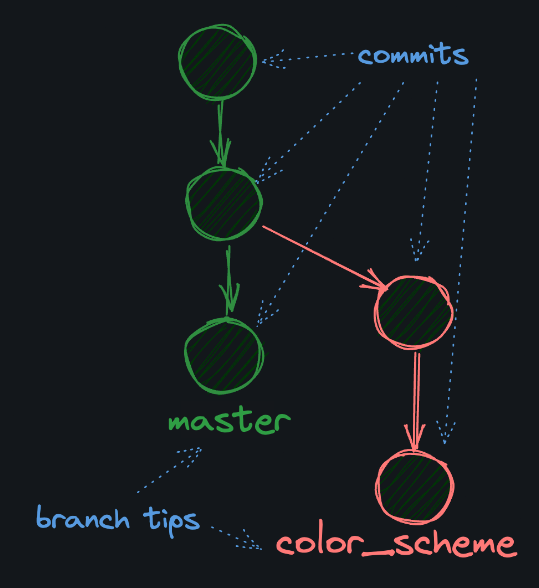
Because a branch is just a pointer to a commit, they’re lightweight and “cheap” resource-wise to create. When you create 10 branches, you’re not creating 10 copies of your project on your hard drive.
Check which branch you’re currently on by running:
git branchDefault Branch#
We’ve been using Git’s default master branch. Interestingly, GitHub (a website where you can remotely store Git projects) recently changed its default branch from master to main. As a general rule, I recommend using main as your default branch if you work primarily with GitHub, as we will.
How to Rename a Branch#
git branch -m oldname newnameNew Branch#
You should already be on the main branch: your “default” branch. You can always check with git branch.
Two Ways to Create a Branch#
git branch my_new_branchThis creates a new branch called my_new_branch. The thing is, I rarely use this command because usually I want to create a branch and switch to it immediately. So I use this command instead:
git switch -c my_new_branchThe switch command allows you to switch branches, and the -c flag tells Git to create a new branch if it doesn’t already exist.
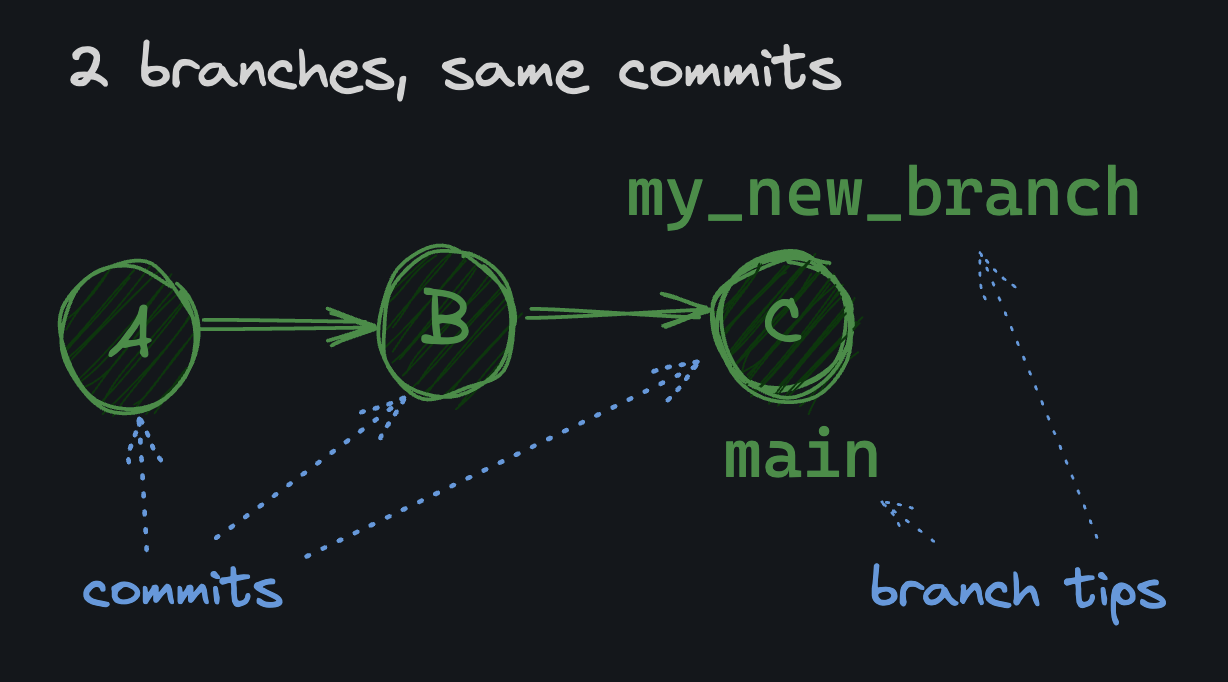
When you create a new branch, it uses the current commit you are on as the branch base. For example, if you’re on your main branch with 3 commits, A, B, and C, and then you run git switch -c my_new_branch, your new branch will look like this:
Merge#
“What’s the point of having multiple branches?” you might ask. They’re most often used to safely make changes without affecting your (or your team’s) primary branch. However, once you’re happy with your changes, you’ll want to git merge them back into the main branch so that they make their way into the final product.
Visual#
Let’s say you’re in a state where you have two branches, each with their own unique commits:
A - B - C    main
   \
    D - E    other_branch
If you merge other_branch into main, Git combines both branches by creating a new commit that has both histories as parents. In the diagram below, F is a merge commit that has C and E as parents. F brings all the changes from D and E back into the main branch.
A - B - C - F    main
   \     /
    D - E        other_branch
delete branch#
git branch -d example_branch