Git is the distributed version control system (VCS). Nearly every developer in the world uses it to manage their code. It has quite a monopoly on VCS. Developers use Git to:
- Keep a history of their code changes
- Revert mistakes made in their code
- Collaborate with other developers
- Make backups of their code
- And much more
Git konular#
Porcelain and Plumbing#
In Git, commands are divided into high-level (“porcelain”) commands and low-level (“plumbing”) commands. The porcelain commands are the ones that you will use most often as a developer to interact with your code. Some porcelain commands are:
- git status = The
git statuscommand shows you the current state of your repo - git add = add file to git status
- git commit = A commit is a snapshot of the repository at a given point in time. It’s a way to save the state of the repository
- git push =The
git pushcommand pushes (sends) local changes to any “remote” - git branch =A Git branch allows you to keep track of different changes separately.
- git pull = fetching the all data from remote repo
- git log = showing logs
git init= create a new Git repository- git merge = merge
example_branchintomain_branchby running this while onmain_branch - git rebase = turn branch to a main branch
- git reset = resetting to a committed hash
- git remote =git remote add name (origin most of time) uri (yanked repo)
- git fetch =This downloads copies of all the contents of the .git/objects
- git switch = switching branch , using -c flag crate ,if use committed hash back to old repo
plumping commands are:
git applygit commit-treegit hash-object
Locations#
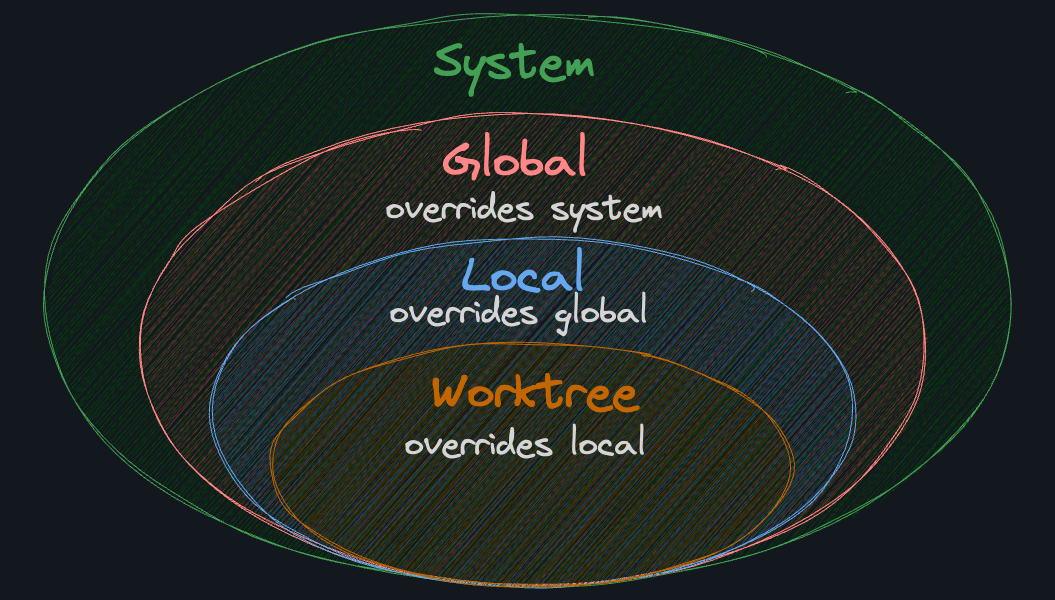
There are several locations where Git can be configured. From more general to more specific, they are:
- system:
/etc/gitconfig, a file that configures Git for all users on the system - global:
~/.gitconfig, a file that configures Git for all projects of a user - local:
.git/config, a file that configures Git for a specific project - worktree:
.git/config.worktree, a file that configures Git for part of a project
In my experience, 90% of the time you will be using --global to set things like your username and email. The other 9% of the time you will be using --local to set project-specific configurations. The last 1% of the time you might need to futz with system and worktree configurations, but it’s extremely rare.
Overriding#
If you set a configuration in a more specific location, it will override the same configuration in a more general location. For example, if you set user.name in the local configuration, it will override the user.name set in the global configuration.
What Is a Branch?#
A Git branch allows you to keep track of different changes separately.
For example, let’s say you have a big web project and you want to experiment with changing the color scheme. Instead of changing the entire project directly (as of right now, our master branch), you can create a new branch called color_scheme and work on that branch. When you’re done, if you like the changes, you can merge the color_scheme branch back into the master branch to keep the changes. If you don’t like the changes, you can simply delete the color_scheme branch and go back to the master branch.
Under the Hood#
A branch is just a named pointer to a specific commit. When you create a branch, you are creating a new pointer to a specific commit. The commit that the branch points to is called the tip of the branch.
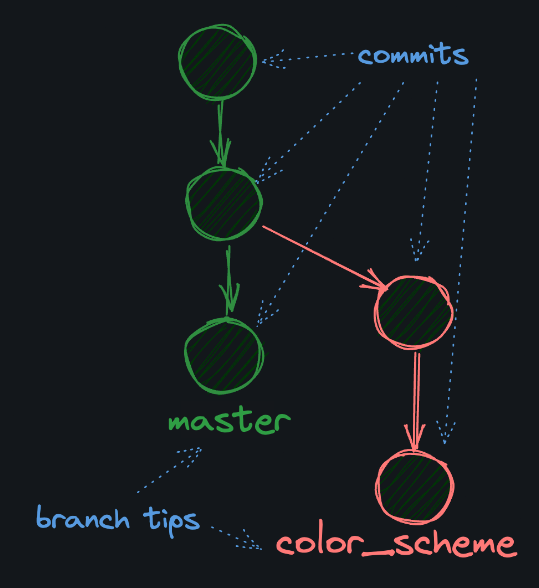
Because a branch is just a pointer to a commit, they’re lightweight and “cheap” resource-wise to create. When you create 10 branches, you’re not creating 10 copies of your project on your hard drive.
Merge#
“What’s the point of having multiple branches?” you might ask. They’re most often used to safely make changes without affecting your (or your team’s) primary branch. However, once you’re happy with your changes, you’ll want to git merge them back into the main branch so that they make their way into the final product.
Git Remote#
Often our frenemies (read: coworkers) make code changes that we need to begrudgingly accept into our pristine bug-free repos. /s
This is where the “distributed” in “distributed version control system” comes from. We can have “remotes”, which are just external repos with mostly the same Git history as our local repo.
When it comes to Git (the CLI tool), there really isn’t a “central” repo. GitHub is just someone else’s repo. Only by convention and convenience have we, as developers, started to use GitHub as a “source of truth” for our code. git remote
Pull Requests#
On GitHub, a pull request is a way to propose changes, typically to the rest of your team, or to the maintainer of a project you’re contributing to.
Pull requests allow team members to see what changes are being proposed and to discuss them before they are merged into the main codebase.
My Team Workflow#
When you’re working with a team, Git gets a bit more involved .Here’s what I do:
- Update my local
mainbranch withgit pull origin main - Checkout a new branch for the changes I want to make with
git switch -c <branchname> - Make changes to files
git add .git commit -m "a message describing the changes"git push origin <branchname>(I push to the new branch name, notmain)- Open a pull request on GitHub to merge my changes into
main - Ask a team member to review my pull request
- Once approved, click the “Merge” button on GitHub to merge my changes into
main - Delete my feature branch, and repeat with a new branch for the next set of changes
Merge Pull Request#
In a typical team workflow, you would ask a team mate to review your pull request. If they approve of the changes, they would approve the pull request, and you’d be clear to merge.
We’re the dictators of our own repo however, so no need to wait for approval!
Gitignore#
As you’ve seen, it’s pretty normal to use the following workflow from the top level of your repo:
git add .git commit -m "some message here"git push origin main
A problem arises when we want to put files in our project’s directory, but we don’t want to track them with Git. gitignore file solves this. For example, if you work with Python, you probably want to ignore automatically generated files like .pyc and __pycache__. If you are building a server, you probably want to ignore .env files that might hold private keys. If you (I’m sorry) work with JavaScript, you might want to ignore the node_modules directory.

Here’s an example .gitignore file, which exists at the root of a repo:
node_modulesThis will ignore every path containing node_modules as a “section” (directory name or file name). It ignores:
node_modules/code.jssrc/node_modules/code.jssrc/node_modules
It does not ignore:
src/node_modules_2/code.jsenv/node_modules_3